Deploy LogikHub via Microsoft Azure Marketplace
Deploy, configure, and start using LogikHub for AI-powered code documentation and developer knowledge management directly in your own Azure environment as a secure Managed Application.
What Is Deployed?
When you deploy LogikHub as an Azure Managed Application, the following Azure resources are automatically provisioned into your chosen resource group:
Core Application Services
- Azure Container Apps: Hosts LogikHub’s core microservices and APIs.
- Container App Jobs: Manages background and scheduled processing.
Networking & Security
- Virtual Network (VNet): Segregates resources for secure internal communication.
- Network Security Groups (NSG): Controlled access and traffic filtering.
- Private Endpoints: Secure, private connections to databases.
- Network Interfaces: Manages connectivity between services.
- Managed Identities: Secure, automated authentication between resources.
Data & Storage
- Azure Cosmos DB (MongoDB API): Main database for document and knowledge storage.
- Azure Database for PostgreSQL: Stores metadata and transactional data.
- Azure Key Vault: Secure management of secrets, tokens, and sensitive configuration.
Monitoring & Management
- Azure Log Analytics Workspace: Centralized operational logging and monitoring.
- Deployment Scripts: Automated resource setup and configuration.
- Private DNS Zones & Template Specs: Facilitates seamless, private name resolution and deployment standardization.
Step-by-Step Deployment Guide
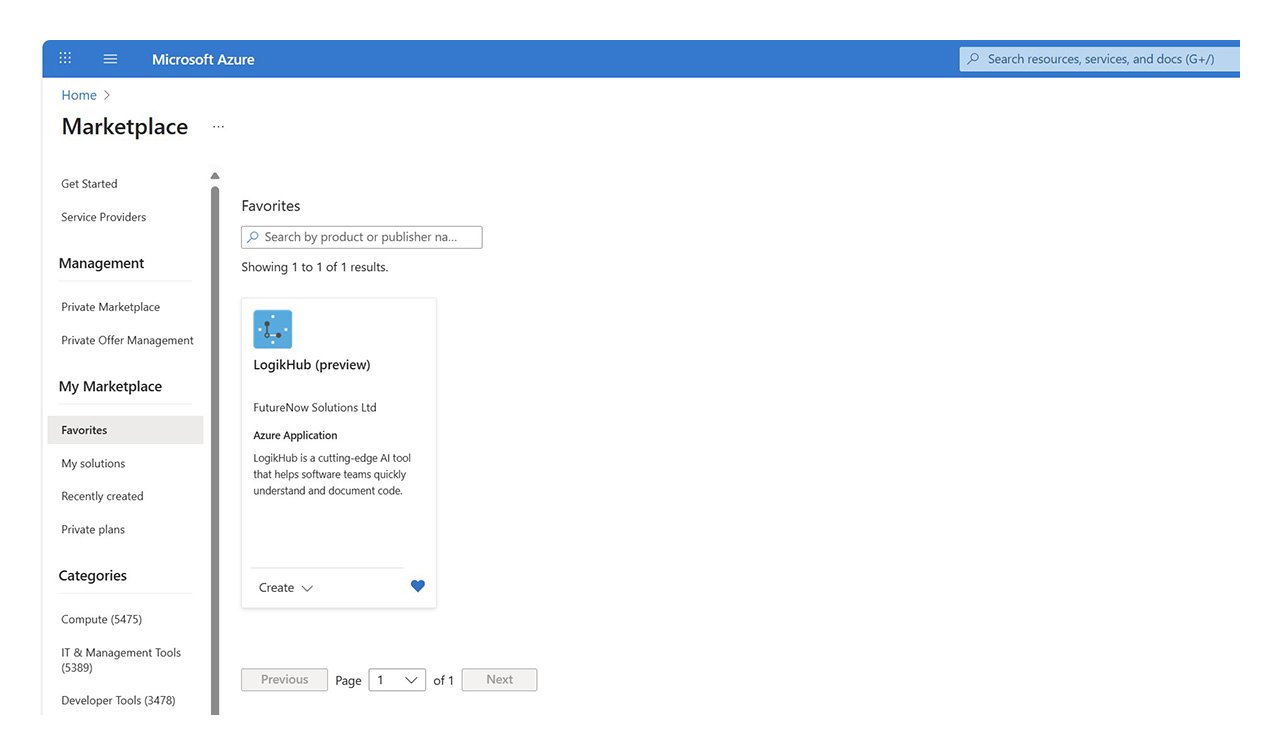
1. Locate LogikHub in Azure Marketplace
- Sign in to your account on the Microsoft Azure Portal.
- Go to “Azure Marketplace” and search for LogikHub.
- Click on the LogikHub tile to view the solution overview.
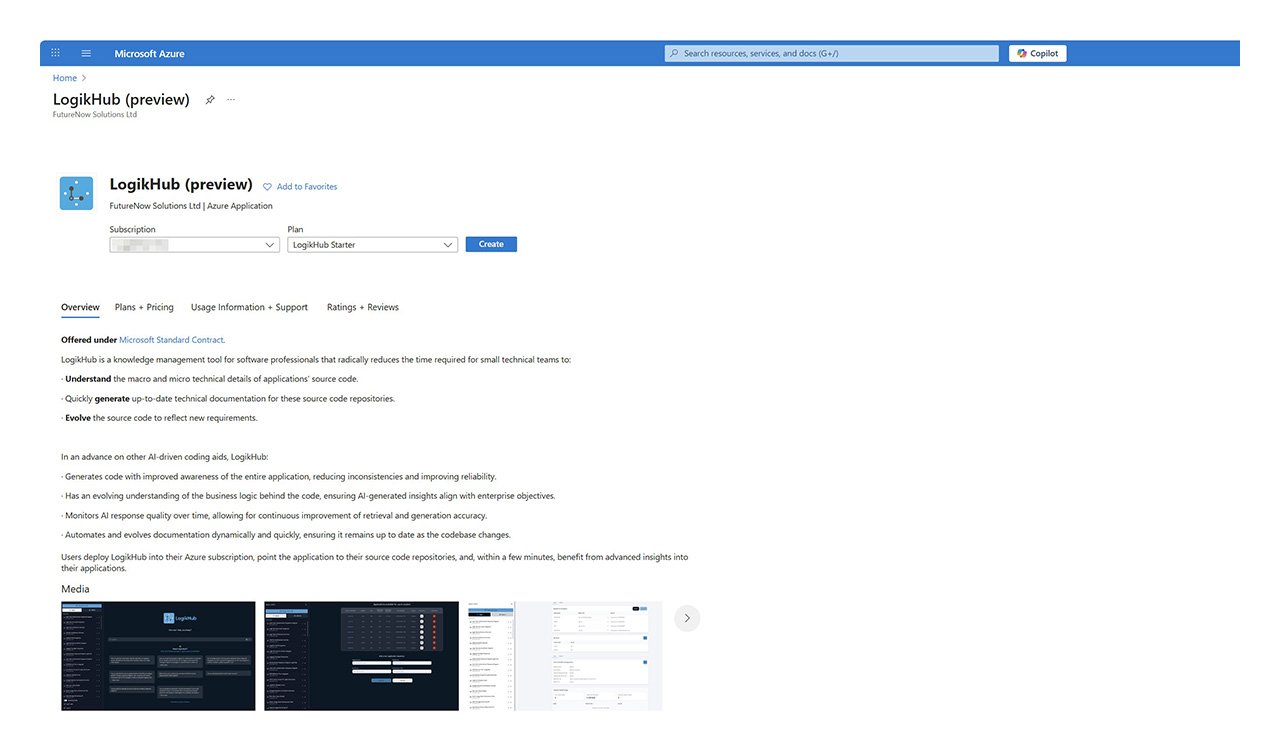
2. Select your Subscription and Plan
- Select the Azure subscription that you wish to deploy in to.
- (If present) Select the LogikHub Starter plan.
- Click Create to begin.
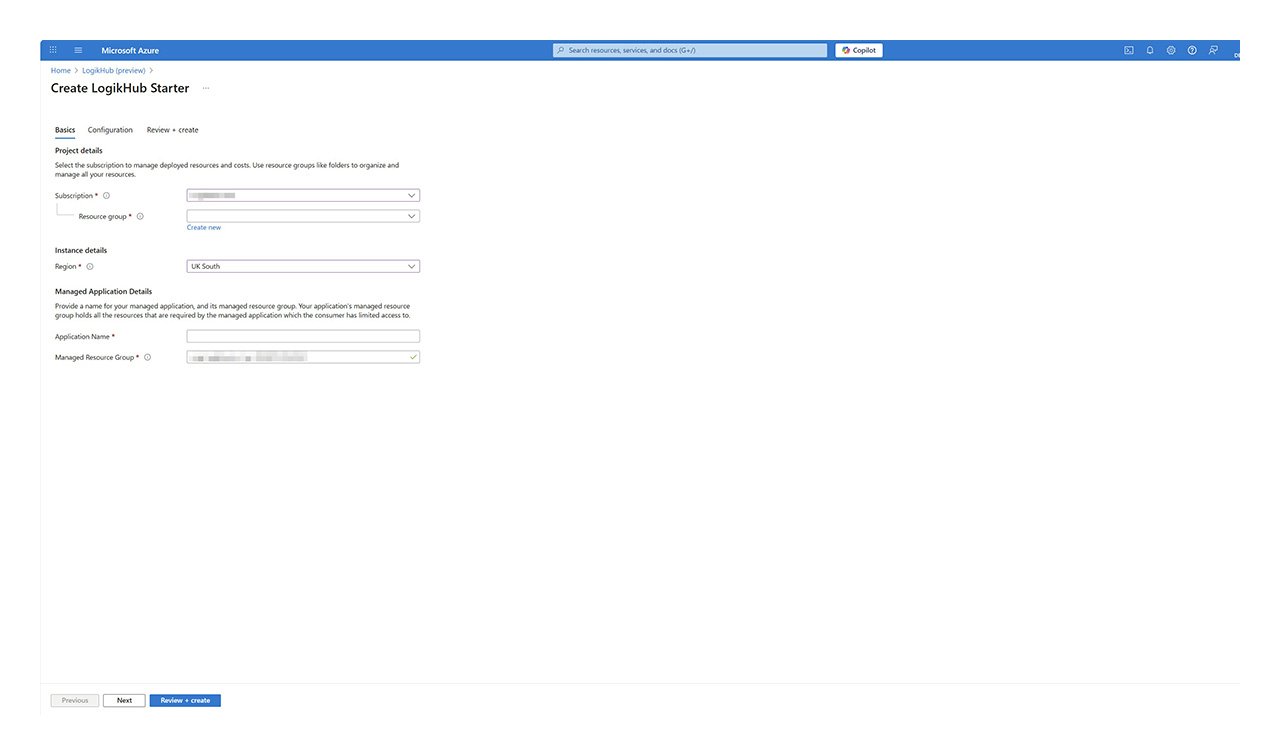
3. Configure Resource Group & Application Details
- Select an existing empty Resource Group that LogikHub will be deployed in to or create a new one.
- Choose an Azure Region, close to the majority of your users, that LogikHub will be deployed in to.
- Define a short Application Name that determines the name of the Managed Application Instance that will appear in your Azure Resource Group. Note that to avoid exceeding Azure resource name constraints the application name should not be longer than 12 characters.
- Do not change the Managed Resource Group.
- Click Next.
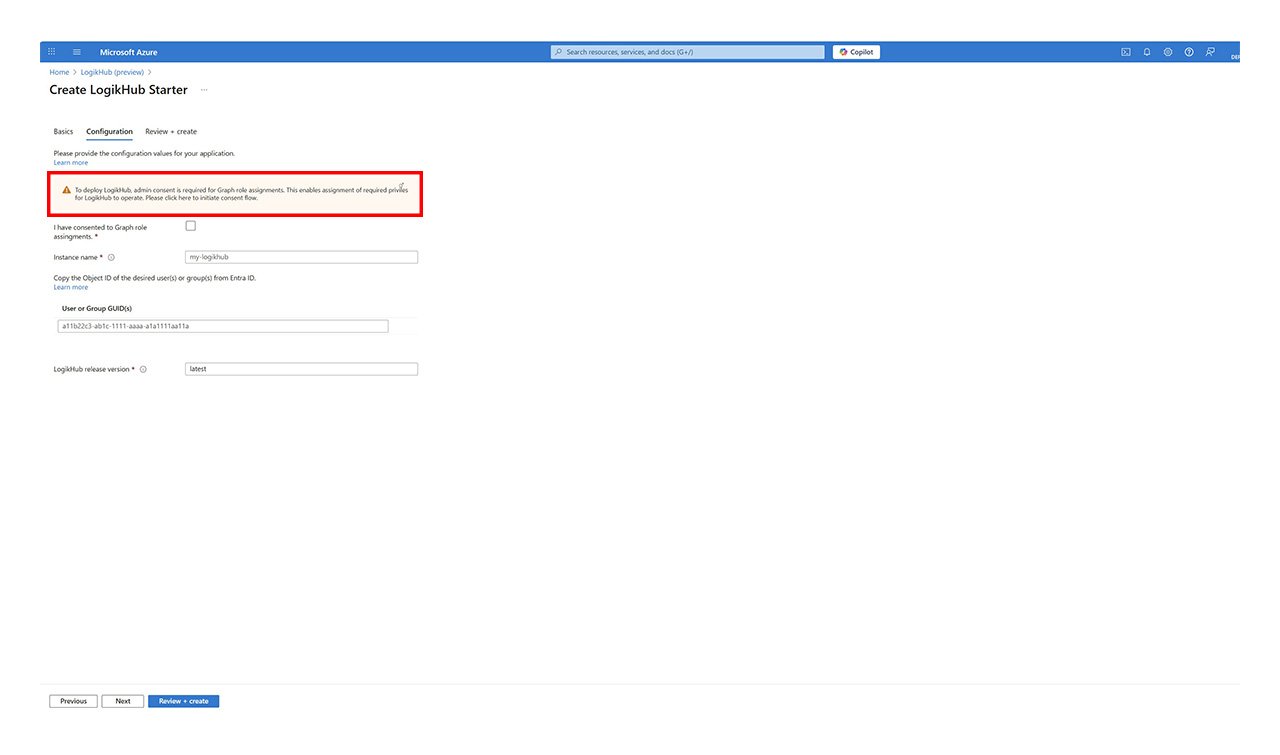
4. Configure Permissions (i)
- Click on the highlighted “To deploy LogikHub, admin consent…” text.
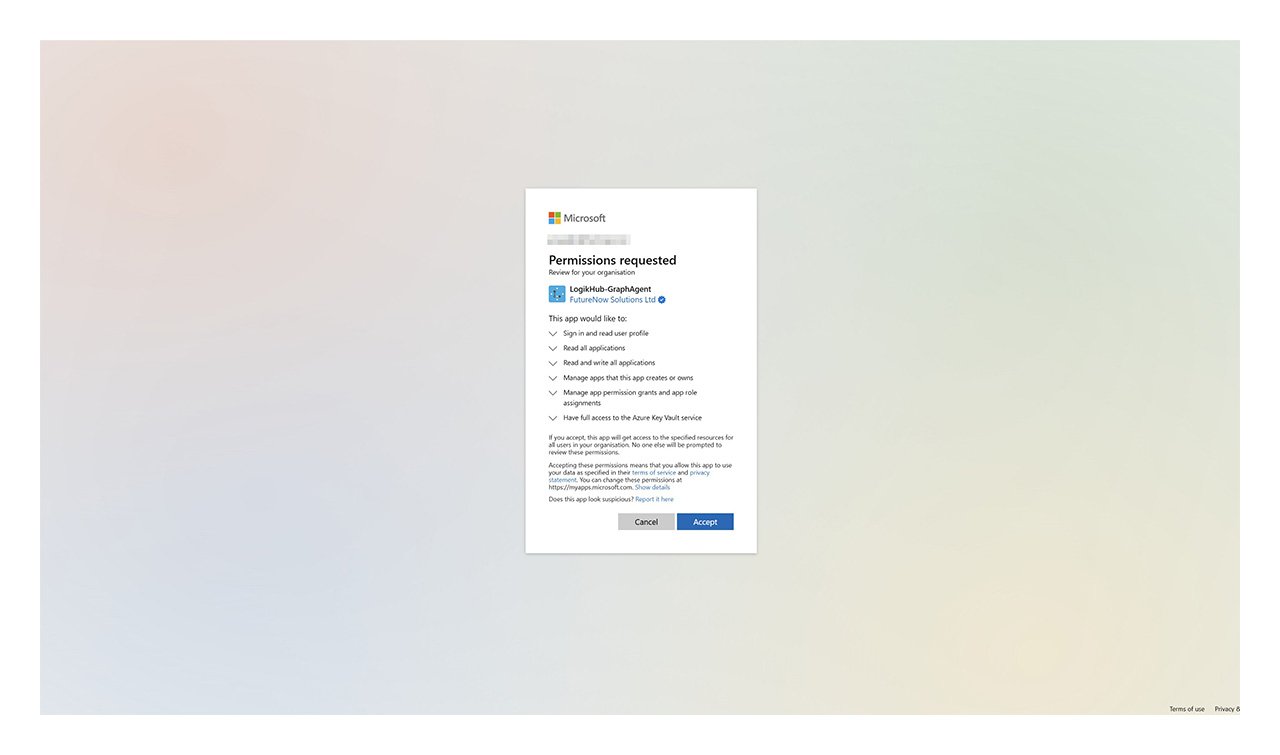
5. Configure Permissions (ii)
- Click Accept to allow LogikHub the permissions required.
- You can review LogikHub’s Terms of Service and Privacy Statement by clicking on the links in the text.
- You will be see a confirmation page in the LogikHub website in a new tab.
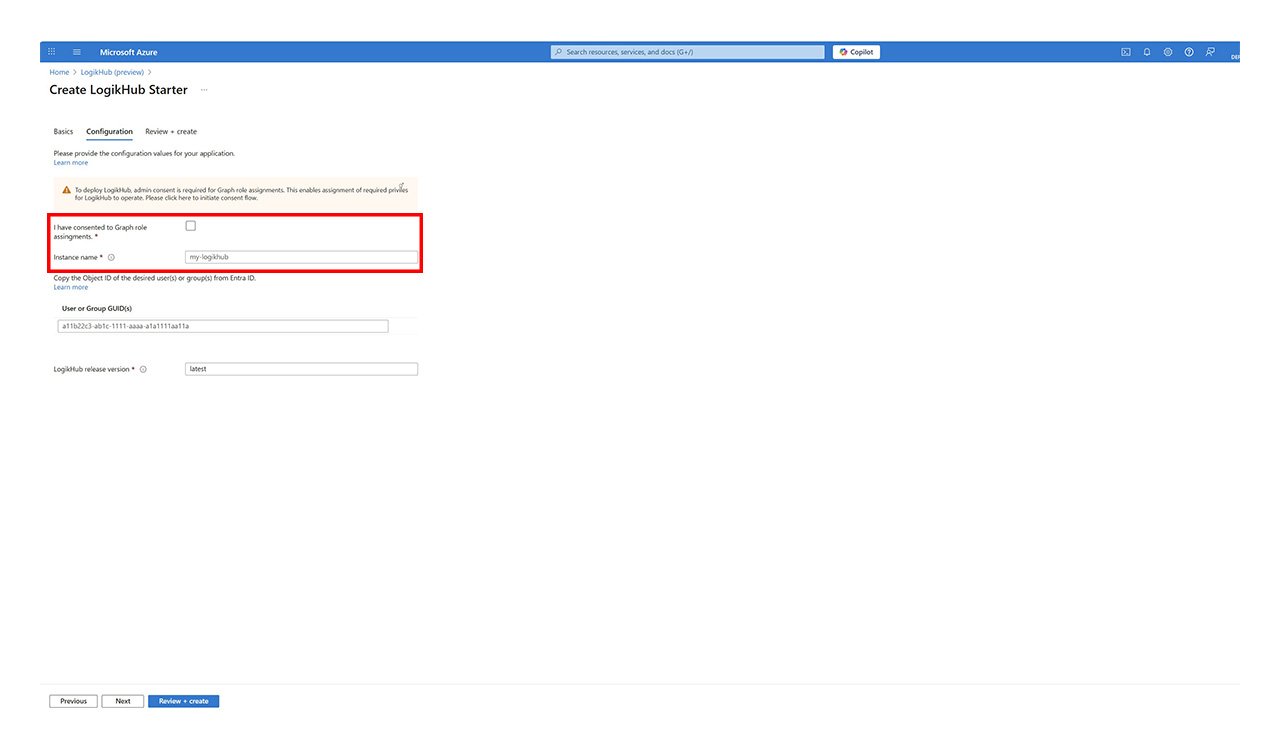
6. Configure Permissions (iii)
- Return to the Azure Marketplace tab
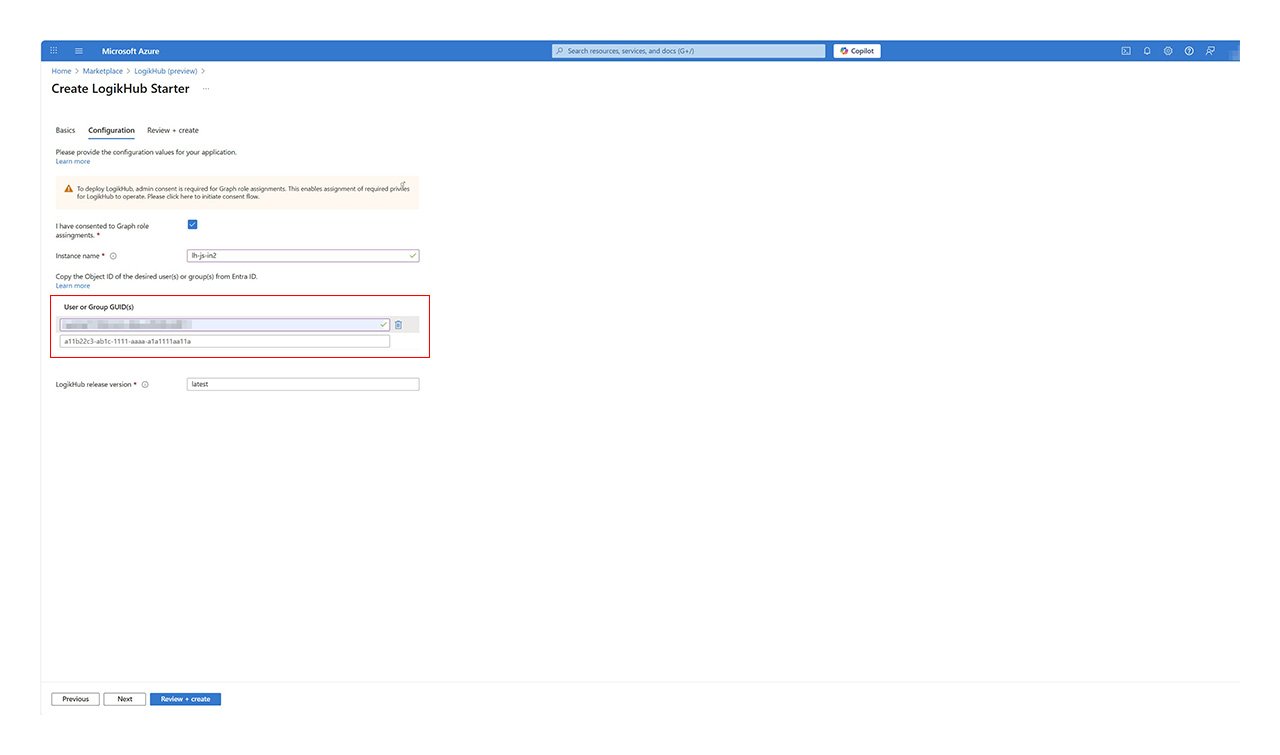
- Tick the “I have consented to Graph Role Assignments” checkbox.
- Enter a unique Instance name as a label for your LogikHub deployment.
7. Configure Permissions (iv)
- Leave the current tab, and open a new Azure Portal tab, ensuring that you are logged in as the same user as you used in the other tab.
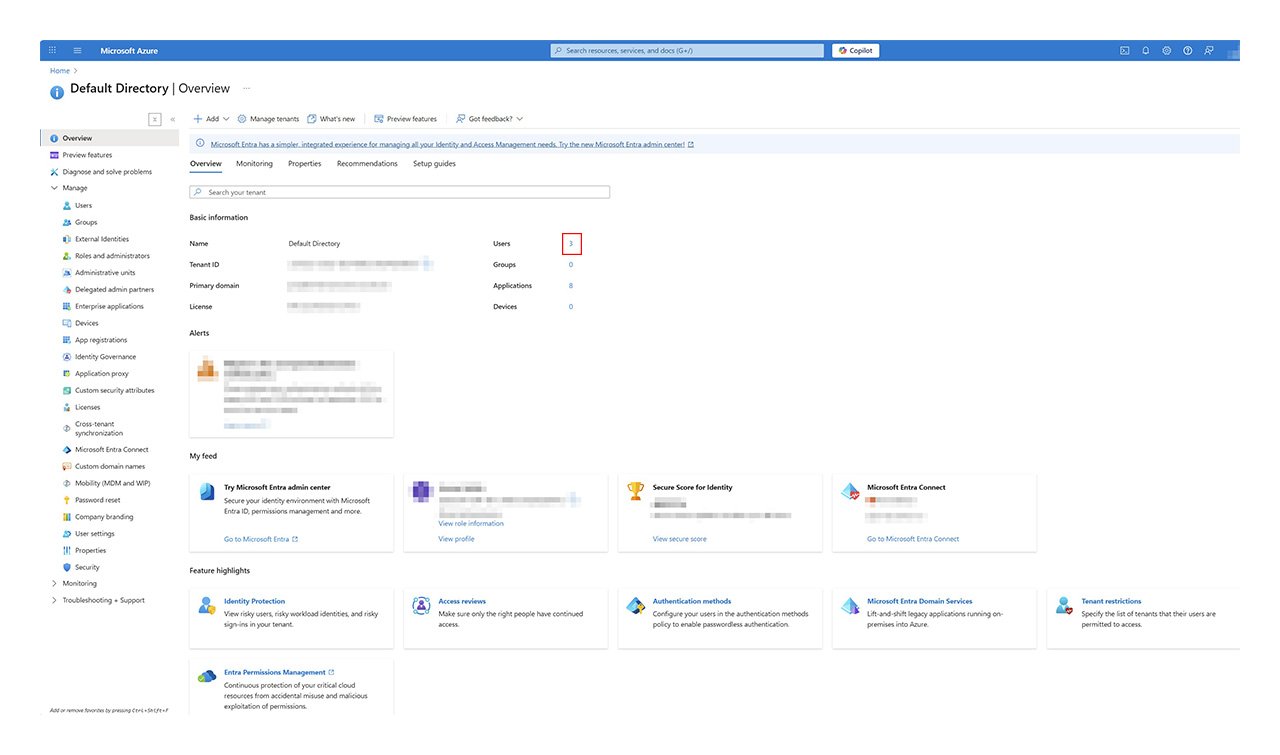
- In the portal’s search bar, type Entra ID, and select the Microsoft Entra ID service that appears below.
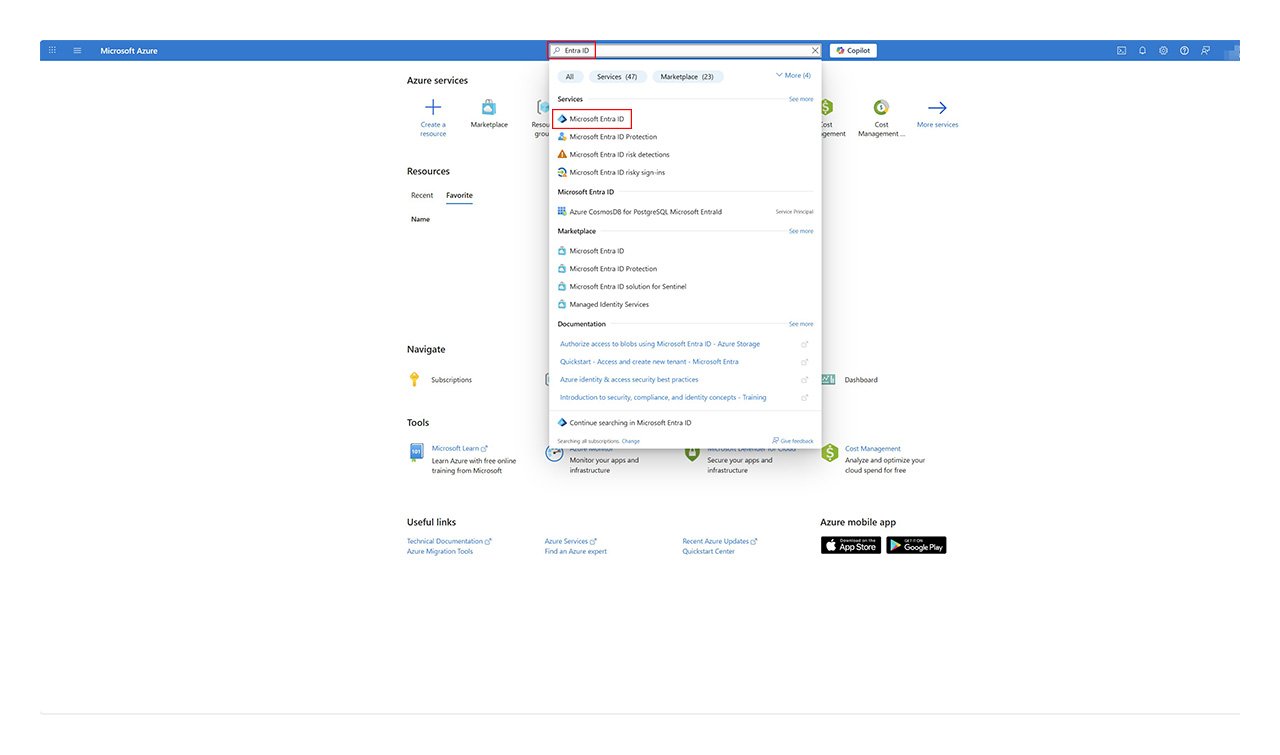
8. Configure Permissions (v)
- Click on the number next to the Users
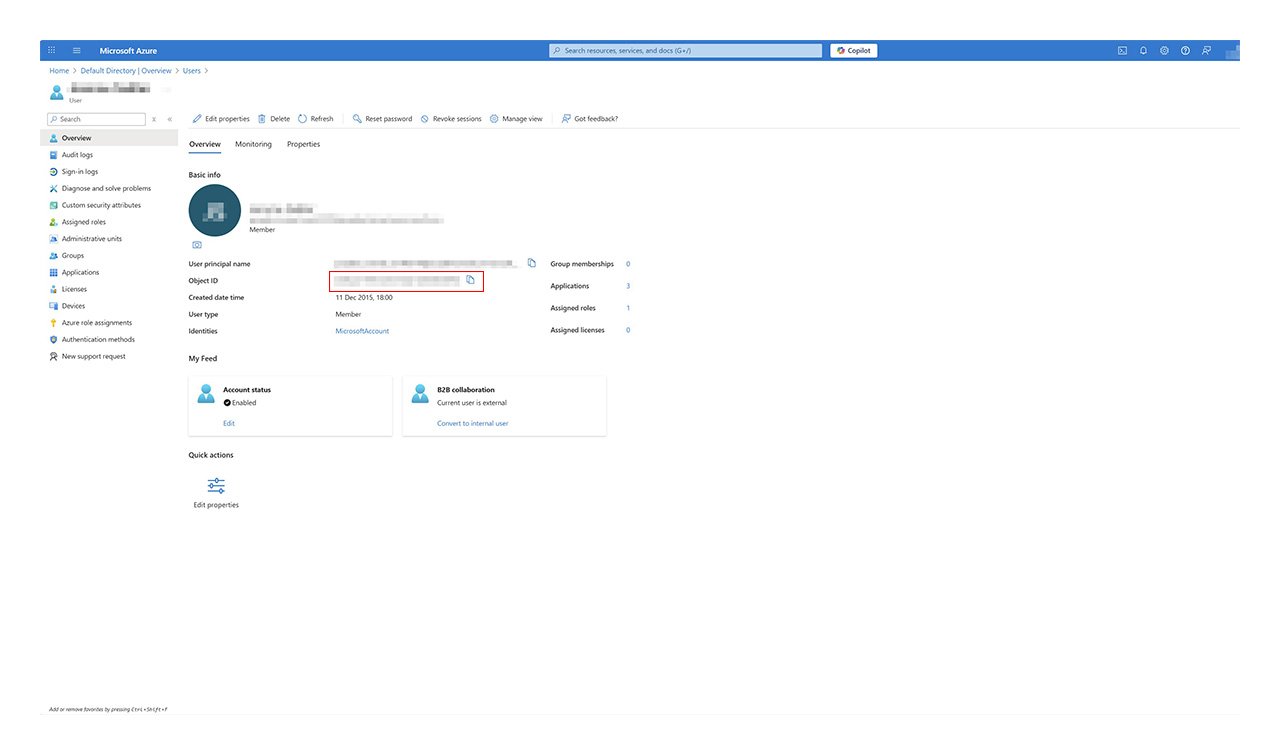
- Click into a user who will use LogikHub
- (Note that you can also select one or more Groups of users. In this case, start step 8 by clicking on the number next to Groups).
9. Configure Permissions (vi)
- Copy the User (or Group) Object ID and paste it into your original tab’s User or Group GUID(s) field.
10. Configure Permissions (vii)
- Repeat steps 8 and 9 for as many users or groups as you require to use LogikHub.
- Leave the LogikHub release version unchanged.
- Click Next.
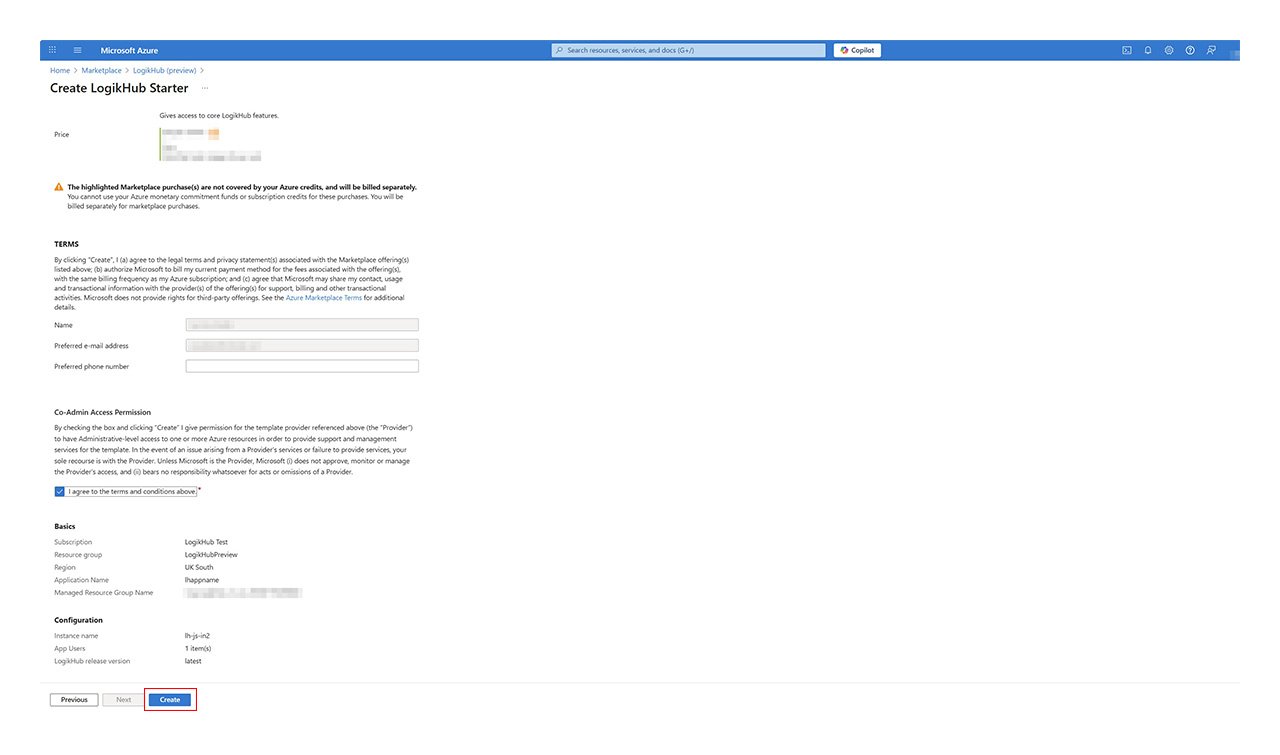
11. Review and Create
- Accept the terms and conditions by ticking the checkbox.
- Review the configuration summary of your LogikHub deployment.
- Click Create.
- LogikHub will now deploy and be ready for use in approximately 30 minutes.