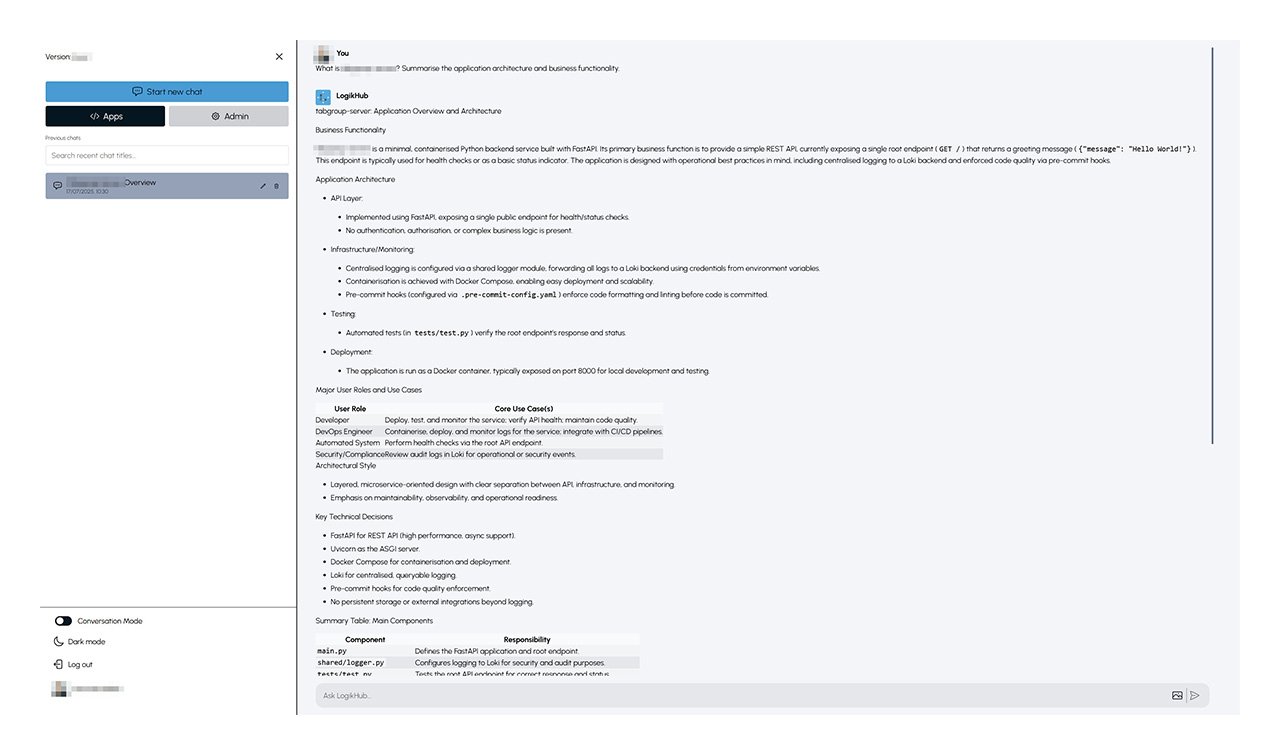
Quick Start Guide: Get Up and Running with LogikHub
Follow these simple steps to integrate your codebase, generate documentation, and start using LogikHub’s interactive codebase chat.
1. Sign In & Welcome
- Log in with your provided LogikHub credentials.
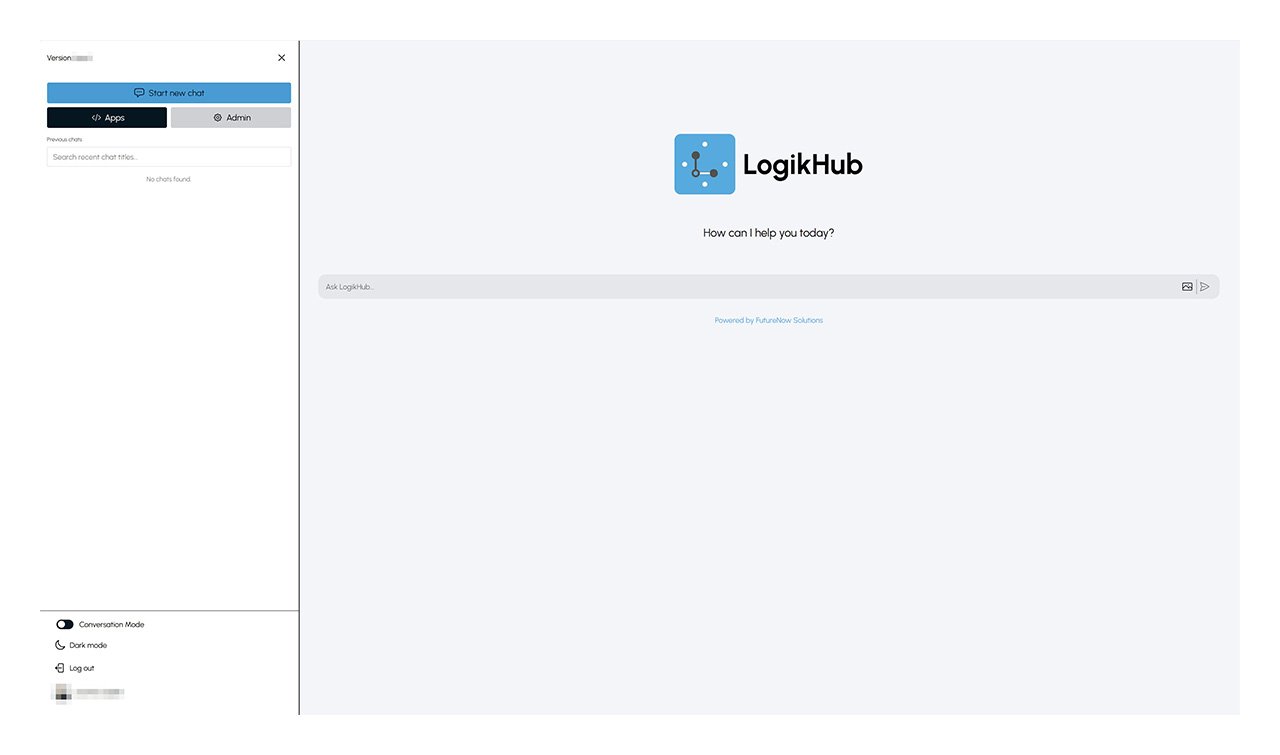
- You’ll land on the LogikHub home screen, with the LogikHub logo front and center and a sidebar to the left.
2. Personalise your Workspace
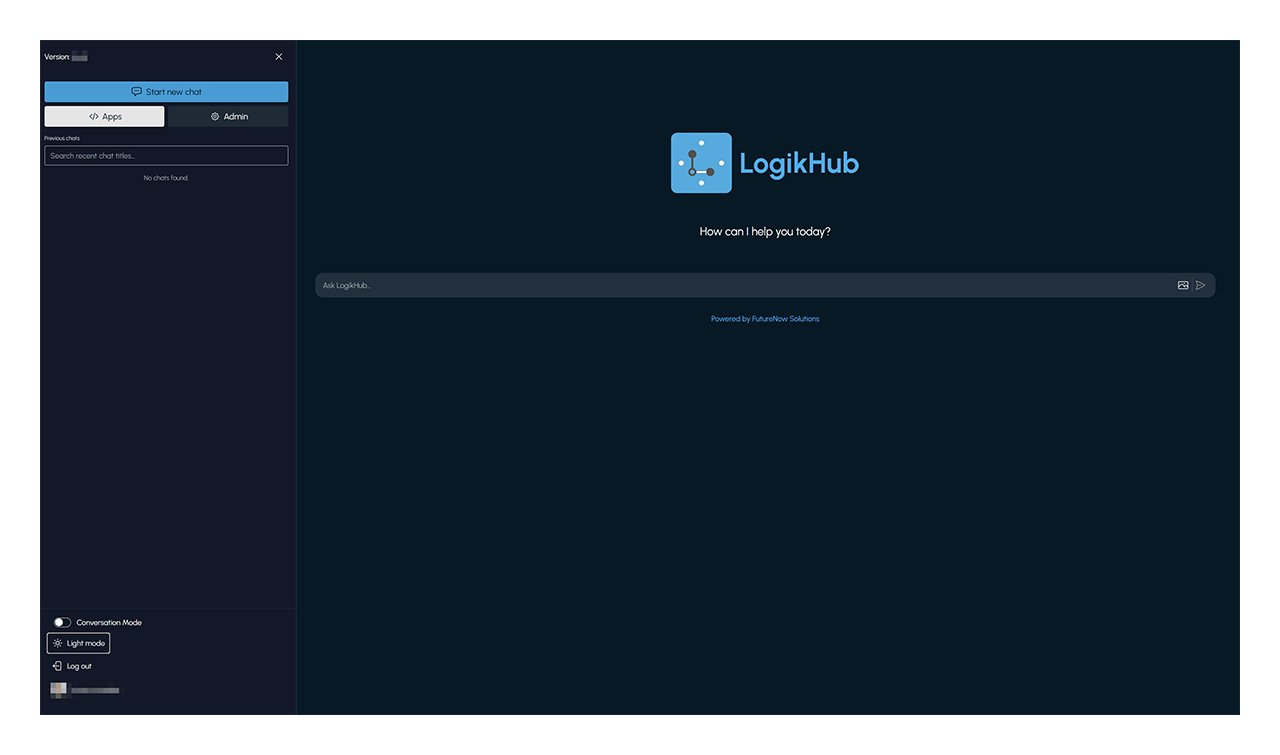
- Switch to Dark Mode
In the bottom left of the sidebar, toggle “Dark mode” for a more comfortable experience (or return to Light mode any time).
3. Enter your AI API Keys
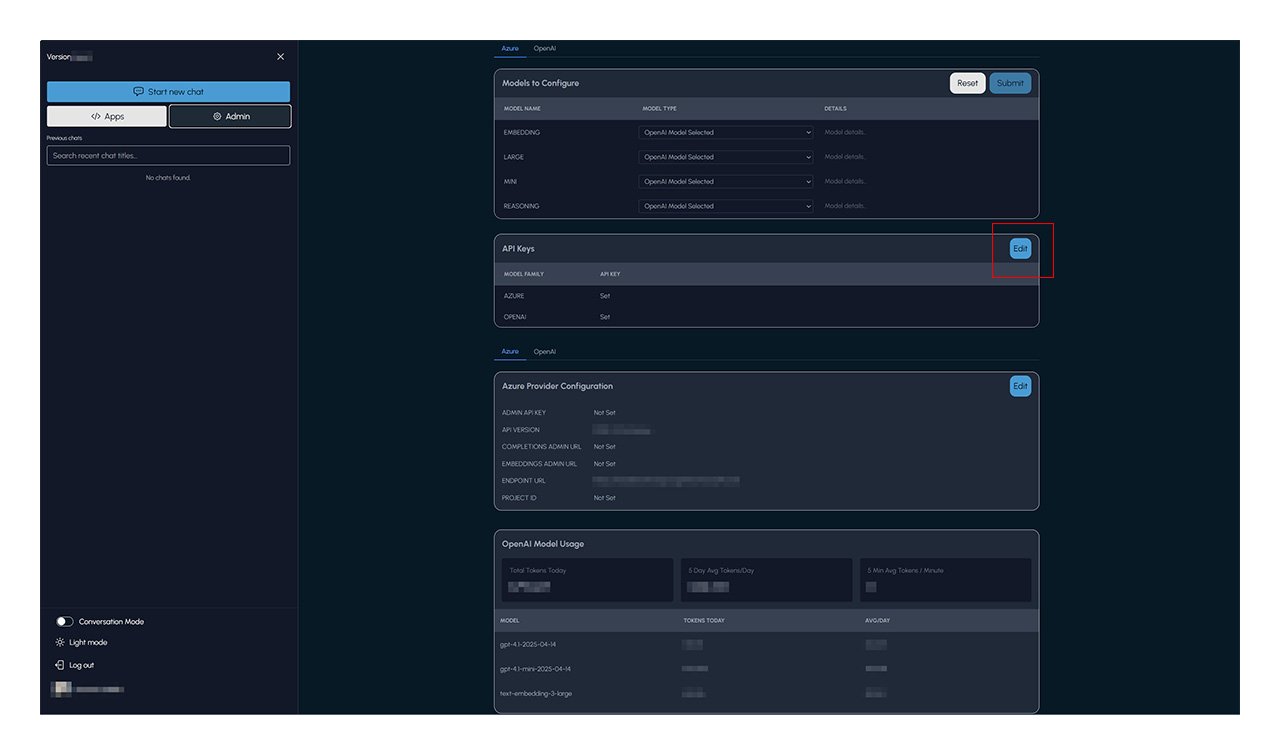
- Click the Admin button at the top left of the sidebar.
- In the Admin panel, find the API Keys section, and click Edit (blue button on the right).
4. Connect your AI Service
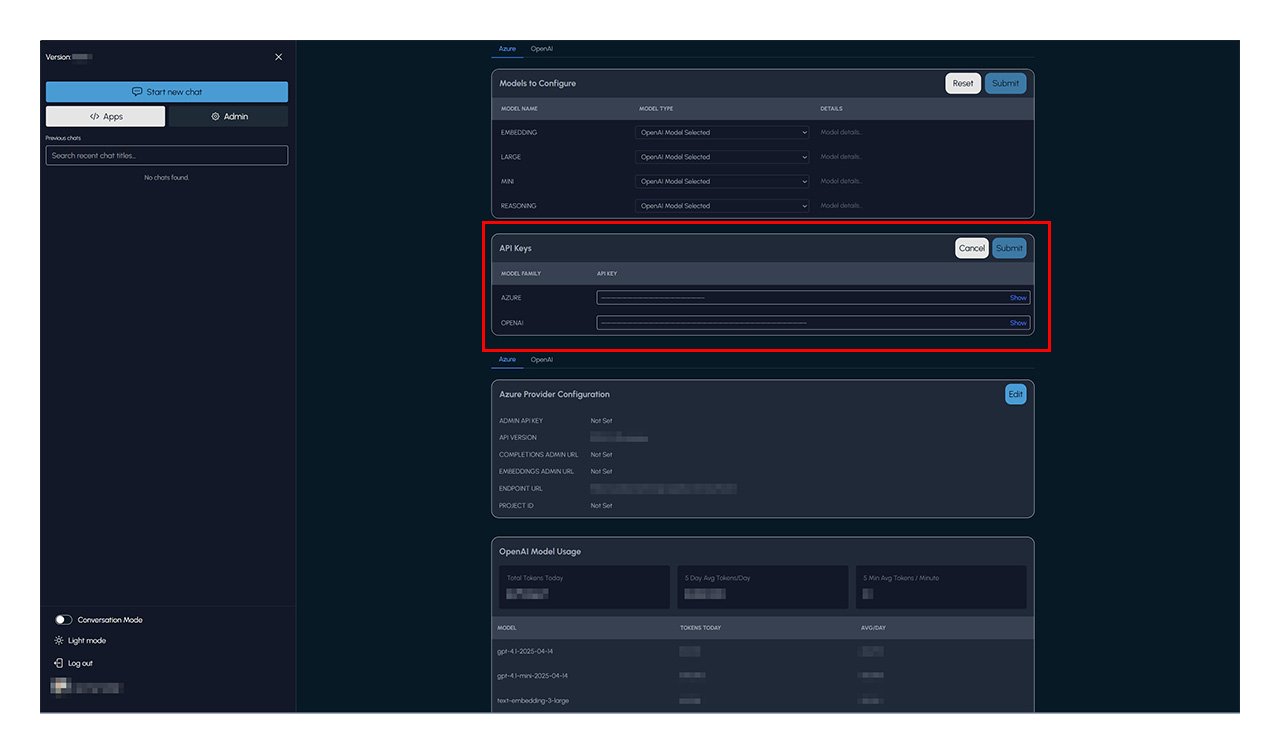
- Enter your API key(s) for:
- AZURE: Your Azure OpenAI key.
- OPENAI: Your native OpenAI key.
- Tips:
- You may enter one or both keys. If you enter just one, ensure the other one is blank.
- Click Show to review your key entry if needed.
- Click Submit (upper-right).
5. Validate your AI Keys
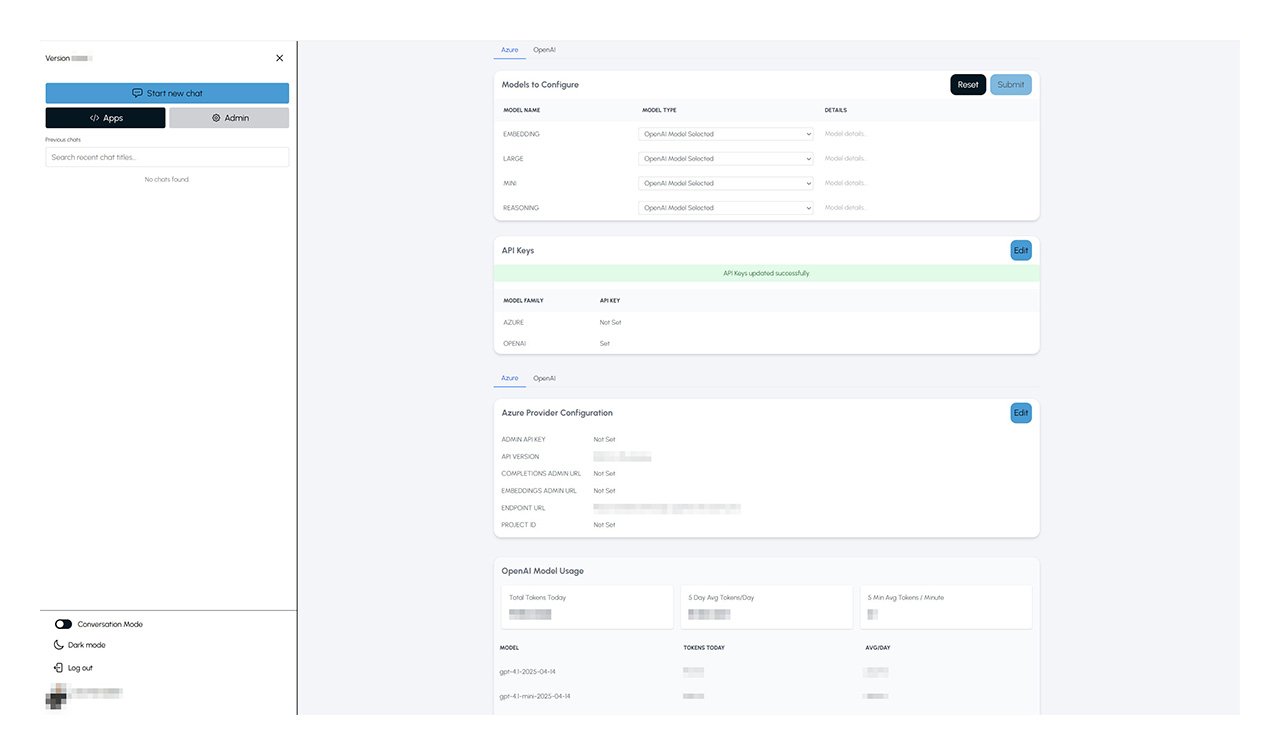
- LogikHub will validate your keys with the relevant service(s). Errors will be shown if any keys are invalid.
- You must have at least one valid API key to proceed.
6. Configure Your Preferred Models
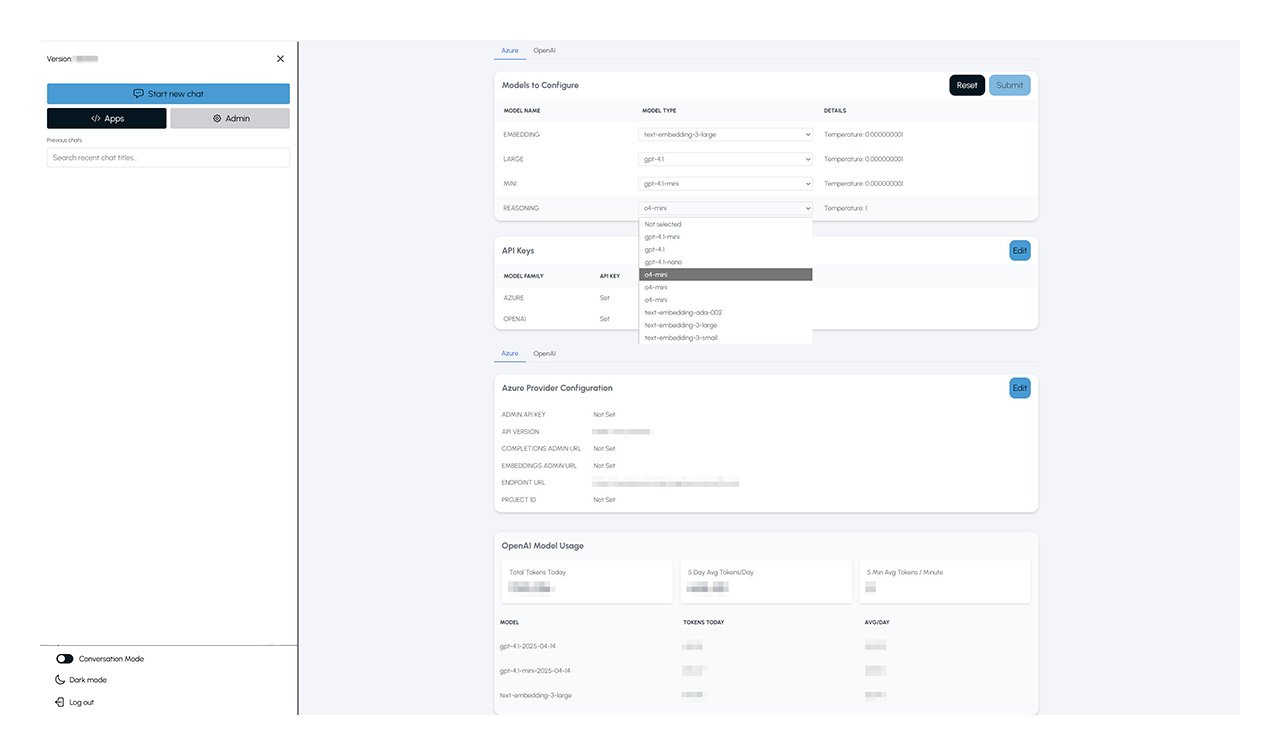
- In the Admin panel, the Models to Configure section lets you select OpenAI or Azure models for Embedding, Large, Reasoning, and Mini tasks.
- Use the Azure or OpenAI tab at the top to choose your provider. This must match the AI Keys provided.
- Native OpenAI Models are the default in LogikHub. If you choose Azure OpenAI Models, start with these:
- Embedding: text-embedding-3-large
- Large: gpt-4.1
- Mini: gpt-4.1-mini
- Reasoning: o4-mini
- Click Submit (upper-right)
7. Add your First Application Repository
- Click the Apps button (next to Admin in the sidebar).
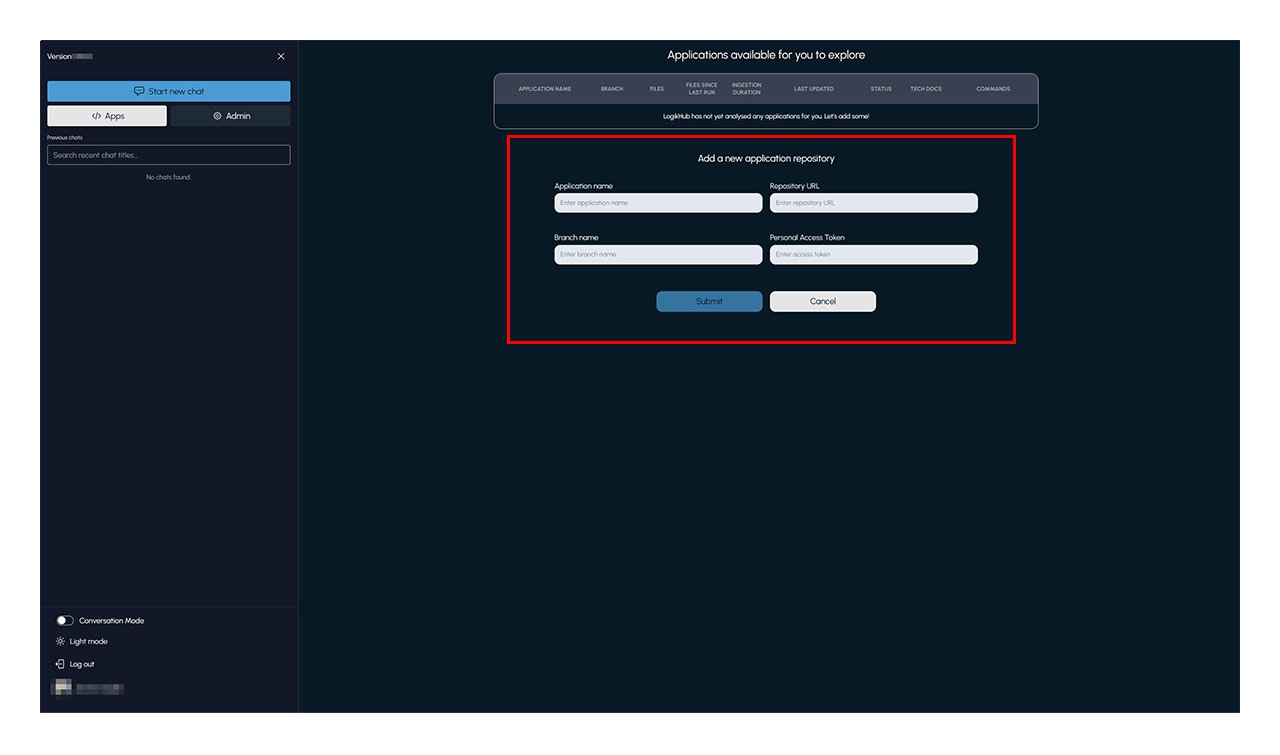
- In the “Add a new application repository” form (center panel), fill in:
- Application name: (e.g., MyApp)
- Repository URL: (GitHub or Azure Repos link)
- Branch name: (e.g., main)
- Personal Access Token: (for access to repos)
- Press Submit
8. Repository Ingestion & Documentation
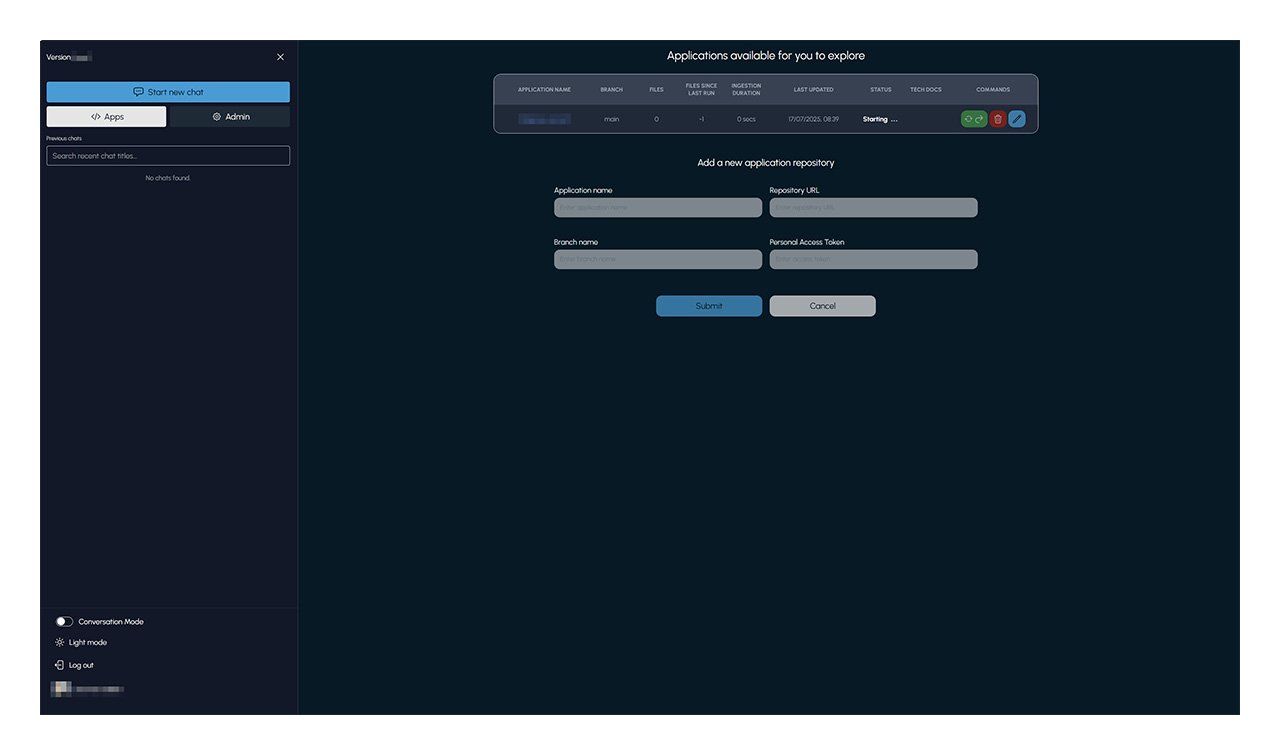
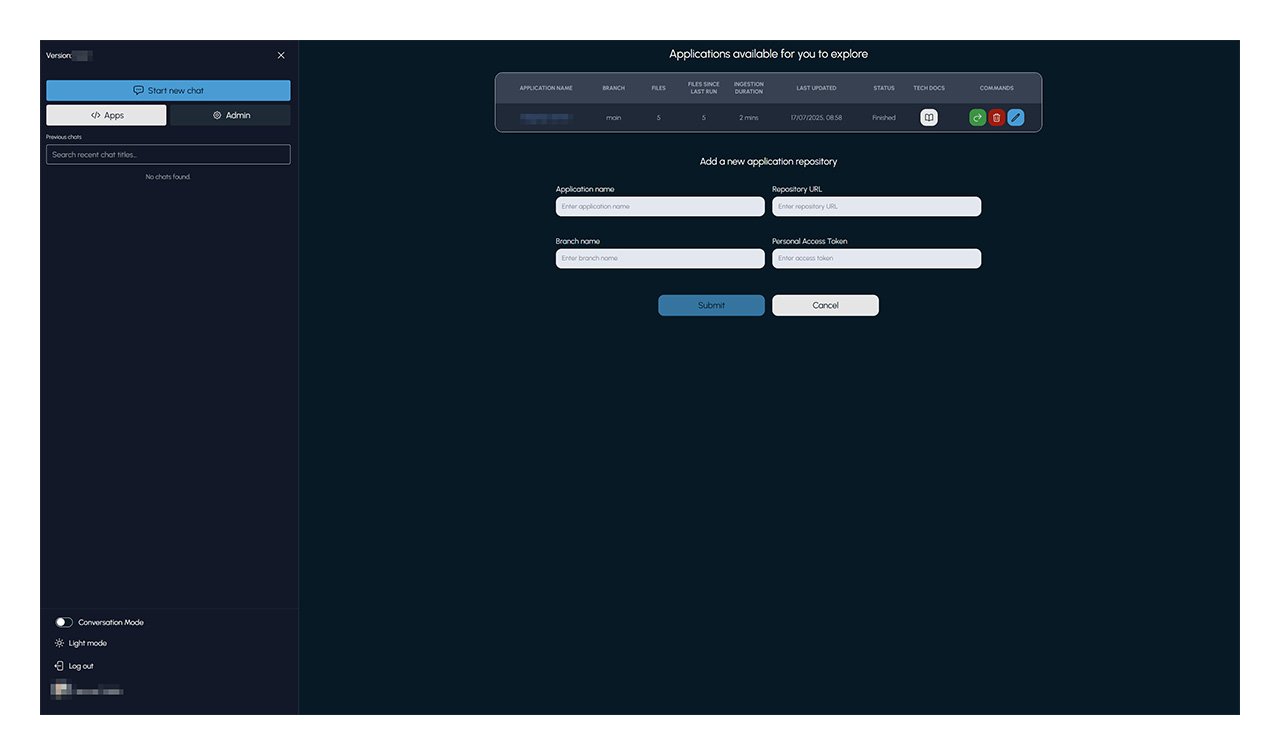
- Your application will appear in the list above the form, showing its status and ingestion progress (e.g., “Starting…” or “Finished”).
- The time to complete will depend on the size of the repository. On average expect 15 minutes.
9. Repository Ingestion Completion
- Once status reads Finished, LogikHub has automatically analyzed and documented your repo.
10. Start Exploring with AI Chat
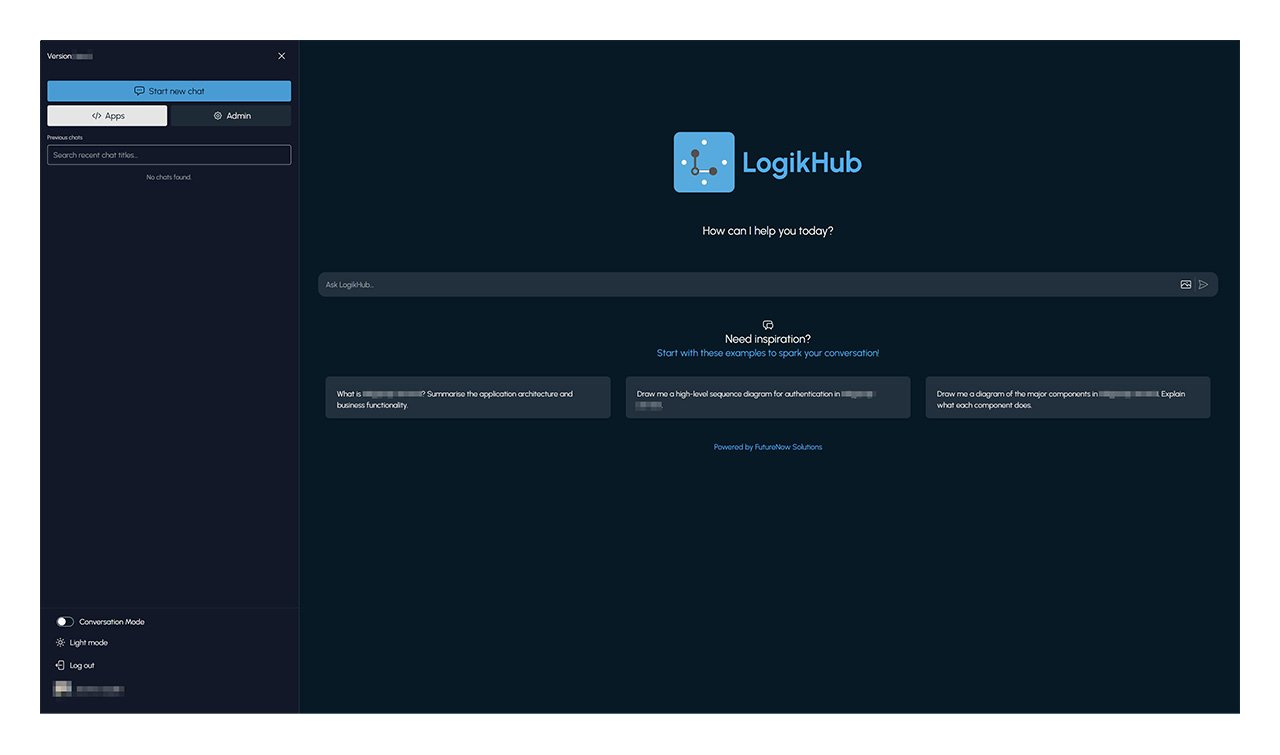
- Click Start new chat (top of the sidebar) or simply click the “Ask LogikHub…” field on the main screen.
- You’ll see sample questions once ingestion is completed. Click one to begin exploring or ask your own!
You’re Ready to Go!
- Enjoy seamless AI code documentation, instant codebase Q&A, and collaborative knowledge management.